Text
Paragraphs and runs
Text("...") sets a paragraph in the type the frame inherits. Text(text => ...) builds one from runs, each
styled on its own:
section.Body().Text(text =>
{
    text.Run("Type is ");
    text.Run("set").Italic();
    text.Run(" in runs, ");
    text.Run("each styled").Bold().Ink(Ink.Hex("#C62828"));
    text.Run(" on its own: ");
    text.Run("underlined").Underline().StrokeStyle(StrokeStyle.Wavy).StrokeInk(Ink.Hex("#1565C0"));
    text.Run(", highlighted").Highlight(Ink.Hex("#FFF59D"));
    text.Run(", tracked out").Tracking(1.5f);
    text.Run(", or raised");
    text.Run("2").Superscript();
    text.Run(".");
});

A run inherits everything it does not set from the paragraph's default type, which inherits from the frame's, which
inherits from the section's DefaultType. Refine the inherited type at any level:
section.DefaultType = TypeStyle.Default.WithTypeface("Noto Sans").WithPointSize(10.5f).WithLeading(1.3f);

section.Body().DefaultType(type => type.WithInk(Ink.Hex("#37474F"))).Text("Slate grey, in Noto Sans at 10.5 points.");

WithLeading sets line spacing as a multiple of the font's own line height; WithTracking adds space between letters.
Setting a paragraph
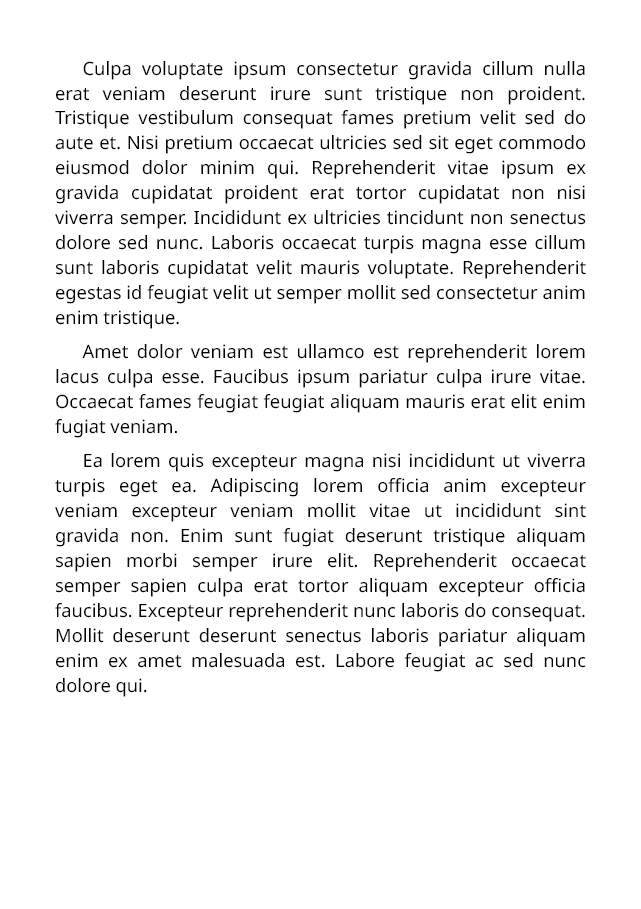
A newline within a run starts a new paragraph. The paragraph settings apply to all the paragraphs of one Text:
SampleData sample = new SampleData(seed: 4);

section.Body().Text(text =>
{
    text.Justified();
    text.FirstLineIndent(18);
    text.SpaceBetweenParagraphs(6);
    text.Run(sample.Paragraphs(3));
});
| Setting | Effect |
|---|---|
FlushLeft(), Centered(), FlushRight() |
Alignment |
FlushStart(), FlushEnd() |
Alignment by reading direction: the edge lines start from, or end at |
Justified() |
Every line but a paragraph's last spread to the full width |
FirstLineIndent(width) |
Indents each paragraph's first line |
SpaceBetweenParagraphs(height) |
Space between paragraphs |
MaxLines(count, ellipsis) |
Shows at most so many lines, the last ending in an ellipsis |
Line(text), BlankLine() |
A run followed by a line break; an empty line |
Lines break where Unicode says they may (UAX #14); a run set with BreakAnywhere() breaks between any two
characters, for long identifiers and URLs. A frame can sit inline in the text — an icon, a badge — with
Inline(frame => ..., InlinePosition.Middle).
Page numbers, references and links
Document document = Document.Compose(composition => composition.Section(section =>
{
    section.Trim = PaperSizes.A5;
    section.Margins = Sides.All(36);

    section.RunningFoot().Centered().Text(text =>
    {
        text.Folio(Numerals.LowerRoman);
        text.Run(" of ");
        text.PageCount(Numerals.LowerRoman);
    });

    section.Body().Stack(stack =>
    {
        stack.Add().Text(text =>
        {
            text.Run("The method is set out on page ");
            text.FolioOf("method");
            text.Run(". ");
            text.CrossReference("Read it now.", "method").Underline();
            text.Run(" The data is at ");
            text.Link("example.org", "https://example.org").Underline();
            text.Run(".");
        });

        stack.Add().NewPage();
        stack.Add().Anchor("method").Bookmark("Method").Text(text => text.Run("Method").PointSize(16));
        stack.Add().Text(new SampleData(seed: 2).Paragraphs(2));
    });
}));
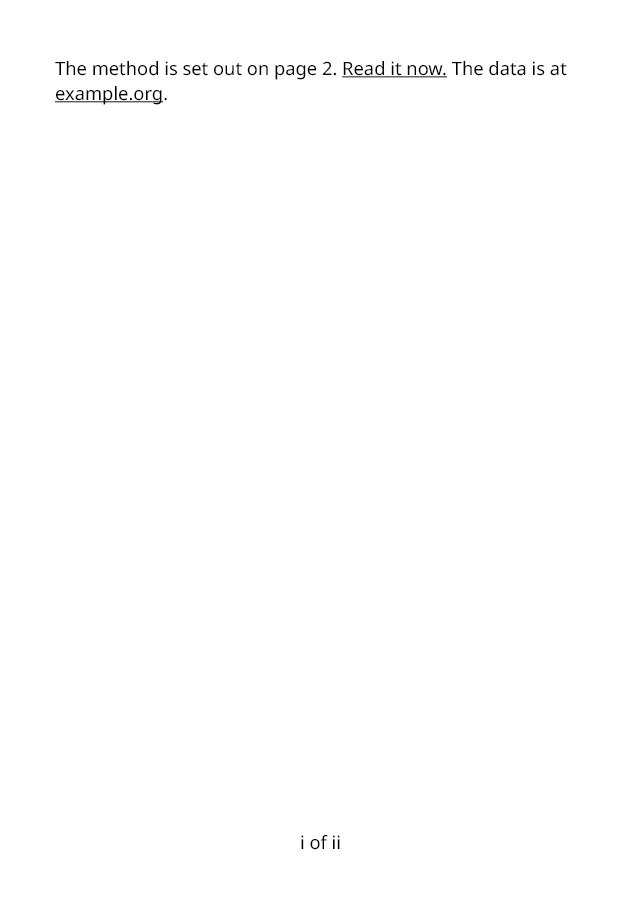
Folio() is the page number — the printer's word for it — and PageCount() the number of pages. An Anchor
names a place: FolioOf gives the page it starts on, LastFolioOf the page its content ends on, FolioWithin
this page's number counted from it and PageCountOf how many pages it spans — page numbers per chapter, say.
CrossReference links to an anchor, Link to a URL, and Bookmark adds an entry to the document's outline.
Every folio method takes the Numerals to write the number in, or any Func<int, string> of your own.
Typefaces
Text names no typeface unless told to, and is then set in Noto Sans, which the package carries: a document that names
none looks the same on every machine. Named typefaces come from a TypefaceLibrary: those registered with it first,
then those installed on the machine. TypefaceLibrary.Shared serves every export not given a library of its own;
register the typefaces a document needs with it once, at start-up, or give an export a library of its own:
TypefaceLibrary typefaces = new TypefaceLibrary();
typefaces.RegisterFile("fonts/NotoSans-Regular.ttf");
typefaces.RegisterFile("fonts/NotoSansGeorgian-Regular.ttf", "Georgian");
typefaces.Fallbacks = ["Georgian"];

Document document = Document.Compose(composition => composition.Section(section =>
{
    section.DefaultType = TypeStyle.Default.WithTypeface("Noto Sans");
    section.Body().Text("Hello — გამარჯობა");
}));

byte[] pdf = document.ExportPdf(new PdfExportOptions { Typefaces = typefaces, RequireEveryGlyph = true });
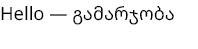
A character a run's typeface lacks is looked for in the typefaces named after it in WithTypeface("Noto Sans",
"Noto Sans Symbols"), then in the library's Fallbacks, then in any registered typeface, then in any installed
one, and last in the Noto Sans the package carries. RequireEveryGlyph turns a character found nowhere into a
MissingGlyphException naming it, rather than a missing-glyph box in the output.
Fonts are embedded subset to the glyphs used, and every run stays searchable and copyable. Typefaces register from a file, a stream, bytes or an embedded resource, under their own family names or a name you give; a registered typeface takes the place of an installed one of the same name.
Complex scripts
Latin, Greek, Cyrillic, Georgian, Armenian, CJK and the like are shaped by the library itself. Arabic, Hebrew with
points, and Indic and South-East Asian scripts need the Rustaveli.Pdf.Shaping package, which shapes them with
HarfBuzz:
TypefaceLibrary typefaces = new TypefaceLibrary().ShapeComplexScripts();
typefaces.RegisterFile("fonts/NotoSansArabic-Regular.ttf", "Arabic");

Document document = Document.Compose(composition => composition.Section(section =>
{
    section.ReadingDirection = ReadingDirection.RightToLeft;
    section.DefaultType = TypeStyle.Default.WithTypeface("Arabic").WithPointSize(14);
    section.Body().Text("مرحبا بالعالم");
}));

byte[] pdf = document.ExportPdf(new PdfExportOptions { Typefaces = typefaces });
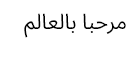
Text in both directions is ordered by the Unicode bidirectional algorithm, whatever the section's direction.
OpenType features
Ligatures, contextual alternates and kerning are on by default. Other features are turned on by name or by their four-letter tag:
section.Body().Text(text =>
{
    text.Line("Figures: 0123456789").OldstyleFigures();
    text.Line("In a column: 1111.11").TabularFigures();
    text.Line("Small capitals").SmallCapitals();
    text.Line("No ligatures in office").Ligatures(false);
    text.Line("Stylistic set one").Feature("ss01");
});
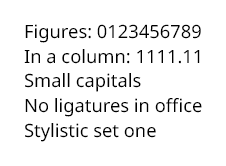
A feature the typeface does not have is ignored.
Style sheets
Named styles are defined once on the document and applied by name — type styles to runs, paragraph styles to text, and frame styles to frames. A style can build on another:
Document document = Document.Compose(composition =>
{
    composition.Styles
        .DefineType("Heading", type => type.WithPointSize(18).Bold())
        .DefineType("Subheading", type => type.WithPointSize(13), basedOn: "Heading")
        .DefineParagraph("Lead", text => text.Justified())
        .DefineFrame("Callout", frame => frame.Fill(Ink.Hex("#F1F8E9")).Stroke(0.5f).Inset(10));

    composition.Section(section =>
    {
        section.Trim = PaperSizes.A5;
        section.Margins = Sides.All(36);

        section.Body().Stack(stack =>
        {
            stack.SpaceBetween(8);
            stack.Add().Text(text => text.Run("Findings").Style("Heading"));
            stack.Add().Text(text => text.Run("In brief").Style("Subheading"));
            stack.Add().Text(text =>
            {
                text.Style("Lead");
                text.Run(new SampleData(seed: 9).Paragraph());
            });
            stack.Add().Style("Callout").Text("Styles are defined once and applied by name.");
        });
    });
});
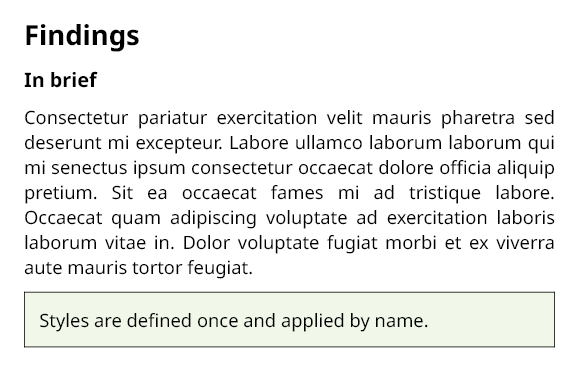
A style is applied where it is named, as the document is composed, so it must be defined before content names it.
Settings made after a named style add to it: Style("Heading").Italic() is an italic heading.